Billo guides
How to Set Bill Reminders on iPhone
To set a bill reminder on iPhone, add the bill's due date, make it repeat if needed, and choose an alert before the date. Apple Reminders handles this as a task. Billo adds a bill record, an upcoming-bills view and reminders that stop for an occurrence after you mark it paid.
Option 1: Use Apple Reminders
Apple Reminders is the shortest route if you want a notification and already use the app. Apple’s iPhone guide confirms that a reminder can repeat and have an early alert.
- Open Reminders and add a new reminder with a clear name, such as Pay electricity bill.
- Set its date to the actual due date. Add a time if you want the alert at a specific hour.
- Open the item’s details and set Repeat for a bill that comes back. A monthly bill usually needs a monthly repeat; review the next date when a provider changes its schedule.
- Choose Early Reminder and an advance interval that gives you enough time to pay. Keep the due-date reminder as the final prompt.
- After you pay, complete the item. Review the list weekly for anything still open.
For a cleaner setup, create a separate Bills list first. Read Apple Reminders for bills for its strengths and limits as a full tracking system.
Option 2: Use Billo for the whole bill cycle
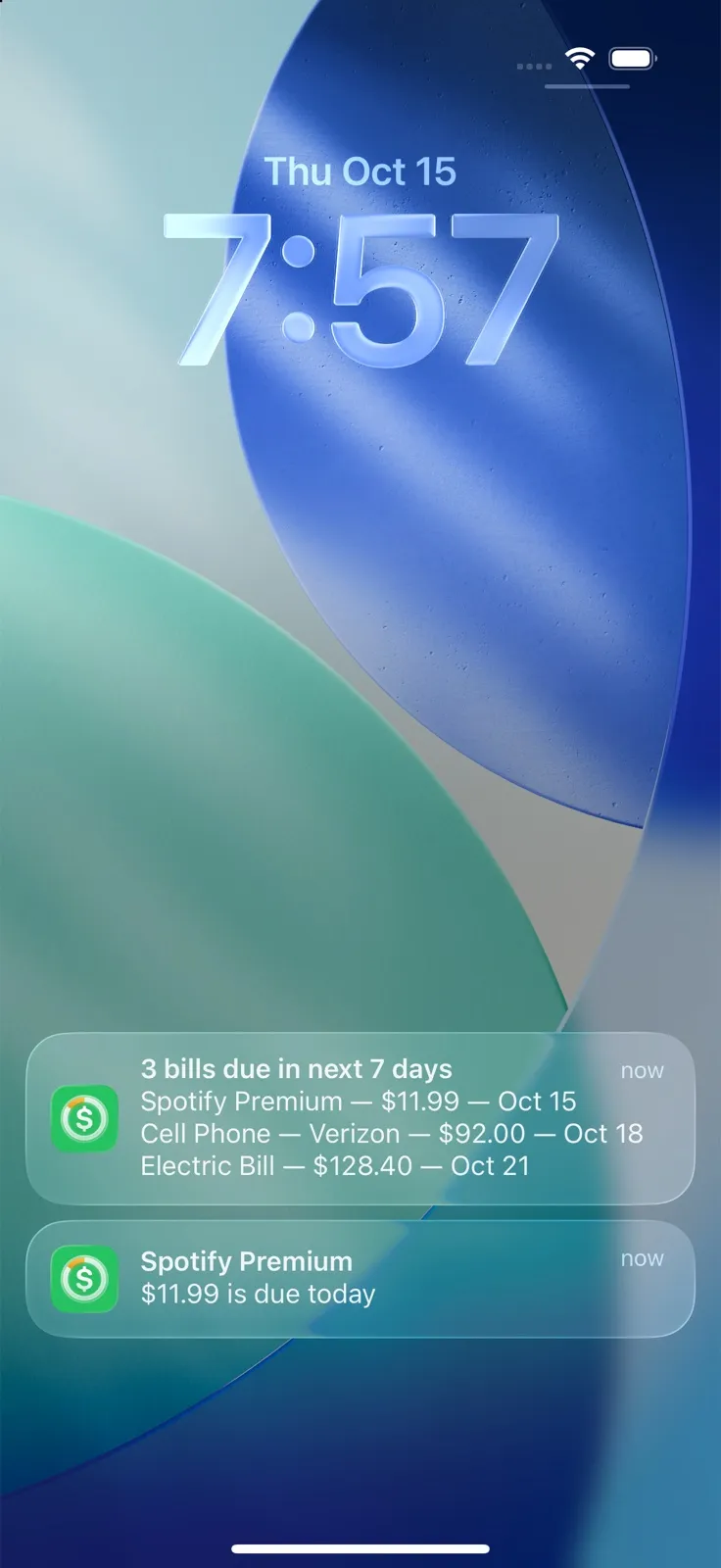
Billo starts with a bill record, then uses that record for the upcoming list, calendar, reminders and payment history. These steps reflect the Billo bill form and notification settings as of October 2026.
- In Billo, tap + from the Bills screen. Enter the bill’s Name, Amount and Due Date. Use the Repeat section if the bill recurs, then tap Save.
- Open Settings → Notification Settings. Under Bill Reminders, turn on Enable Reminders and grant iPhone notification permission if asked.
- Under Reminder Schedule, select when alerts should arrive. Billo offers advance days and Day of; this schedule applies to all bills. Choose at least one offset and set Reminder Time.
- Check the Bills screen. It groups due bills into Today, Next 7 Days and Next 30 Days, so you can confirm that the new bill appears where expected.
- When you pay, open the bill and mark that occurrence paid. Billo keeps the payment in history and stops reminders for that occurrence. A recurring bill continues with its next due date.
Billo can also show a Daily Digest of upcoming bills in Notification Settings. Use that if a single overview helps more than checking every bill separately. The digest does not replace verifying the actual amount and due date with the provider.
Disclosure: Billo is made by this article’s author, Jiří Urbášek. You enter bill details manually; Billo does not connect to your bank and does not pay the bill for you.
If an alert is missing
First verify that the bill or reminder has the intended date. Then open iPhone Settings → Apps → Reminders or Billo → Notifications and check Allow Notifications. Apple documents this path in its notification help. In Billo, also check Enable Reminders and the selected Reminder Schedule. A Focus mode or scheduled notification summary can change when an alert becomes visible, so check those iPhone settings if permission is already on.
Do one real-world check after setup: add a bill with a near due date, confirm that it appears in the upcoming list, and check that your chosen notification schedule is enabled. Do not rely on an alert alone for a time-sensitive payment; keep a weekly review habit as well.
What should you review each week?
Open your bill list once a week and scan the next seven days. Confirm amounts with the providers, make payments through your usual method, and mark each item complete or paid. For a fuller workflow, see how to keep track of bills on iPhone.
Frequently asked questions
Can I get an alert before the due date and another on the day?
Yes. In Apple Reminders, set the dated reminder and an Early Reminder. In Billo, Notification Settings lets you select advance offsets and Day of for all bills.
Why did my bill reminder not appear?
Check that the reminder has the right date, notifications are enabled for the app in iPhone Settings, and the app's own reminder setting is on. Focus and notification-summary settings can also affect when you notice alerts.
Does marking a Billo bill paid stop its reminder?
Yes. Billo stops reminders for the paid occurrence and keeps the payment in the bill's history. A later recurring occurrence remains on its schedule.