Billo guides
Apple Reminders for Bills: Setup and Limits
Apple Reminders can handle bill due dates: create a Bills list, add a dated reminder for each bill, set it to repeat, and add an early alert. It is a good choice if you only need a prompt to act. If you also want amounts, a bill calendar and a payment history in one place, a dedicated tracker such as Billo is easier to review each month.
Set up a Bills list in Apple Reminders
Apple Reminders works well when your main question is, “What do I need to pay next?” You can set up one list for bills and give each item a due date. The steps below follow Apple’s current iPhone Reminders guide and its instructions for repeating and early reminders.
- Open Reminders and create a list named Bills. A separate list keeps payments away from shopping and everyday tasks.
- Add a reminder named for the bill, such as Electric bill. Put any useful account reference or payment link in the note, rather than crowding the title.
- Set the date to the bill’s due date. Add a time if you want a notification at a particular hour; Apple says an all-day reminder uses the time configured in Reminders settings.
- Open the reminder’s details, tap Repeat, and choose the schedule that matches the bill. Confirm the next occurrence if the bill follows a less common cycle.
- In the same details, choose Early Reminder so the alert arrives while there is still time to act. You can complete the reminder after you make the payment.
If your reminders do not appear, check Settings → Notifications → Reminders and allow notifications. Apple’s notification settings guide also explains where to change alert appearance. If you use iCloud Reminders, your list can stay in sync across Apple devices.
What Apple Reminders does well for bills
Reminders is already on iPhone and is quick to set up. Repeating items reduce re-entry, and an early reminder gives you a second chance to notice a date. Apple also lets you show scheduled reminders in Calendar, so you can see them alongside other events.
For someone who has only a few bills and simply wants a task to complete, this may be enough. A reminder can hold a note and a link to the provider, and completing it gives you a clear “done” action.
Where a dedicated bill tracker helps
A task list does not give you the same month view as a bill tracker. In Reminders, you can put an amount in a title or note, but you would have to maintain your own totals and decide how to record partial or changed payments. A completed task is also different from a bill payment record with the amount and date you actually paid.
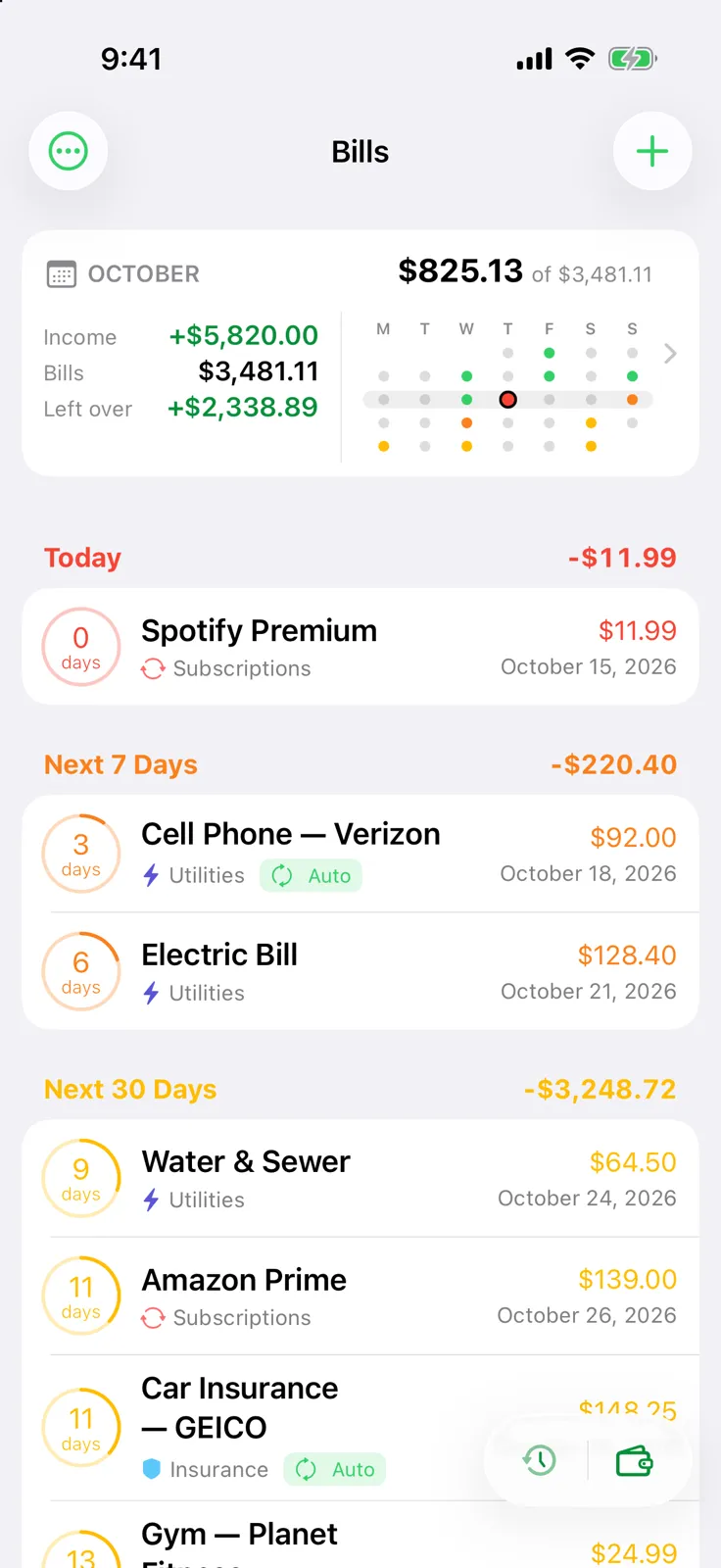
Billo is built around that bill-specific record. Its home screen groups bills due Today, in the Next 7 Days, and in the Next 30 Days. Its calendar shows due and paid items, and opening a bill lets you see upcoming occurrences and payment history. You enter the bills yourself; Billo does not read a bank account or send a payment. For the exact setup, see how to set bill reminders on iPhone.
| Choose Apple Reminders if… | Choose Billo if… |
|---|---|
| You only need a dated task and an alert. | You want due dates, amounts and paid status together. |
| You are happy checking bills in a general task list. | You want a dedicated bill calendar and upcoming-bills groups. |
| You keep payment records somewhere else. | You want each bill’s payment history in the same app. |
Disclosure: Billo is made by this article’s author, Jiří Urbášek. Apple Reminders is a sensible option if the task-list approach covers your needs; Billo is useful when that list starts to feel like extra bookkeeping.
A simple monthly routine, whichever you choose
Once a week, look at what is due in the next seven days. Open each bill before paying to verify the amount and due date with the provider. After paying, mark the item complete in Reminders or mark the occurrence paid in Billo. At the end of the month, check for any item still open and correct dates that have changed.
The tool matters less than keeping one reliable place to check. If you want a fuller routine, read how to keep track of bills on iPhone.
Frequently asked questions
Can Apple Reminders repeat a bill every month?
Yes. Give the reminder a date or time, open its details, choose Repeat and select the frequency you need. Check unusual billing schedules against the next occurrence.
Can Apple Reminders notify me before a bill is due?
Yes. In the reminder's details, choose Early Reminder after setting its date and time. Apple's available choices include advance alerts such as two days before.
Does Billo pay a bill for me?
No. Billo records bill dates and payments and sends reminders. You still pay the bill through your usual bank or provider.