Billo guides
How to Track Recurring Bills and Payment Dates
To track recurring bills, record each bill's next due date and repeat interval, set an alert before payment is due, and log each occurrence after it is paid. Check automatic payments against your provider or bank; a scheduled date alone does not prove the payment went through.
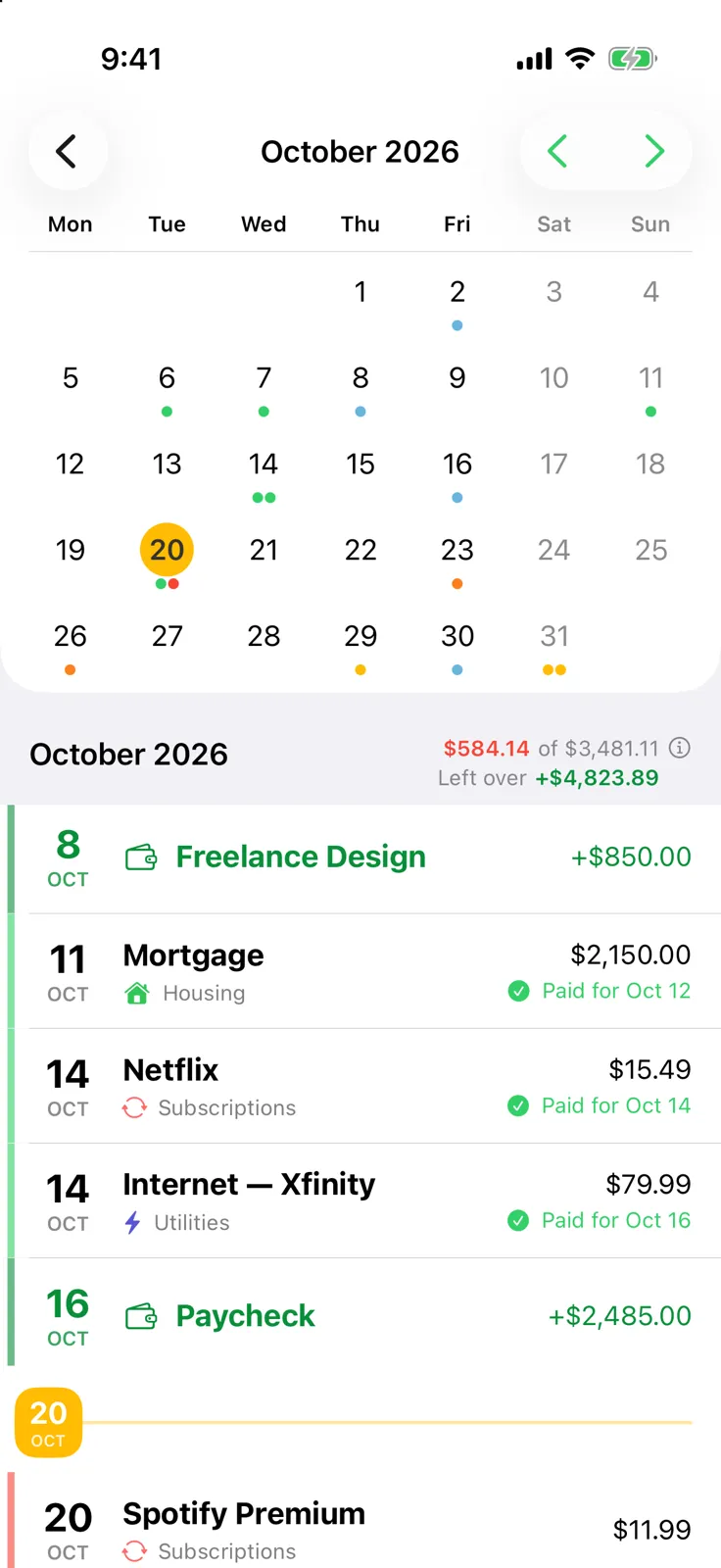
Start with a bill schedule you can verify
Write down the name, expected amount, next due date, repeat interval and payment method for each recurring bill. Include bills you pay yourself and those charged automatically. The date should come from the provider’s latest statement or account page, especially when a due date can move around a weekend or holiday.
You can use a paper calendar, a spreadsheet or an iPhone app. The Consumer Financial Protection Bureau’s bill calendar is a useful model: put each obligation on the date when it needs attention, then look at the month as a whole. The essential habit is keeping the schedule current, whichever tool holds it.
| Example bill | Expected rhythm | What to double-check |
|---|---|---|
| Rent | Monthly | The agreed due date and payment method |
| Utilities | Monthly, with a changing amount | The latest statement amount |
| Childcare | Weekly or every two weeks | Which week the next payment covers |
| Insurance | Less often than monthly | The renewal notice and next actual date |
The examples are a setup checklist, not a rule about how a provider bills you. Copy the interval from your own agreement.
Enter the repeat interval, then inspect the next occurrence
Common schedules include weekly, every two weeks and monthly. A monthly bill due on the 15th should show a next occurrence on the following month’s 15th after the current one is paid. Check that result when you create the repeat; similar-looking choices such as every two weeks and twice a month produce different dates.
In Billo, tap + on the Bills screen, enter Name, Amount and Due Date, and choose Repeat. The repeat picker includes weekly, every two weeks and monthly presets. Save the bill, then check its upcoming occurrence in the Bills list or calendar. Billo shows bills due Today, in the Next 7 Days and in the Next 30 Days, which makes an incorrect start date easier to catch.
If a bill follows an interval that your chosen tracker cannot represent, keep that date as a separate dated reminder and update it from each new statement. Do not force an annual, irregular or statement-based bill into a monthly repeat just to make it appear on a calendar. Apple’s Reminders instructions show how to set a dated item to repeat and how to choose an early alert.
Set an alert early enough to act
Choose an advance reminder based on how you actually pay. If a bank transfer or provider portal needs a few days, an alert only on the due date may arrive too late. Add a second check on the due date if you want a final prompt.
Billo’s Settings → Notification Settings lets you choose reminder days before a bill and Day of; that schedule applies across your bills. Apple Reminders lets you set a date, a repeat and an Early Reminder for each task. Our iPhone bill reminder guide gives the exact steps for both methods.
An alert is a prompt to check the bill. Confirm the amount, due date and payment instructions with the provider before acting. Review the next week once a week as a backup habit, particularly for time-sensitive bills.
Record each payment, including autopay
After you pay a bill through its provider or your bank, record that occurrence as paid. Note the actual payment date and amount when your system allows it. Keep any confirmation number where you can find it later. For a changing bill, correct the saved amount or next expected amount after reading the new statement.
An automatic payment still deserves a check. The date in your tracker shows when you expect it to happen; the provider or bank shows whether it actually cleared. If it failed, leave the occurrence open and follow the provider’s instructions. If it succeeded, mark it paid or let your tracker record it as an automatic payment, then check the record against the real transaction.
Billo keeps a payment history for each bill. Marking an occurrence paid stops its reminders while the next recurring occurrence remains scheduled. Billo can also record an automatically paid bill, but it does not connect to your bank or verify settlement. Disclosure: Billo is made by the publisher of this guide. You enter bill details yourself, and Billo does not make payments.
Review the next month before it starts
At the end of each month, scan the next 30 days. Look for bills missing from the calendar, repeats on the wrong day, and amounts that changed. Then check the previous month’s unpaid items and payment history. This short review catches a stale schedule before it becomes an overdue bill.
If you want a single iPhone routine for due dates, amounts, alerts and paid status, read how to keep track of bills on iPhone. For a choice of tools, see our bill reminder app comparison.
Frequently asked questions
What is the simplest way to track monthly bills?
Keep one list with each bill's name, expected amount, next due date and monthly repeat. Review the coming week regularly and mark each occurrence only after checking that it was paid.
Should I track bills that are paid automatically?
Yes. Record the expected withdrawal date and check the provider or bank for confirmation. An automatic payment can change amount, fail or move to another date.
What if a recurring bill has a different amount each month?
Treat the saved amount as an estimate. Check the latest statement before paying and record the actual payment amount when your tracker supports it.